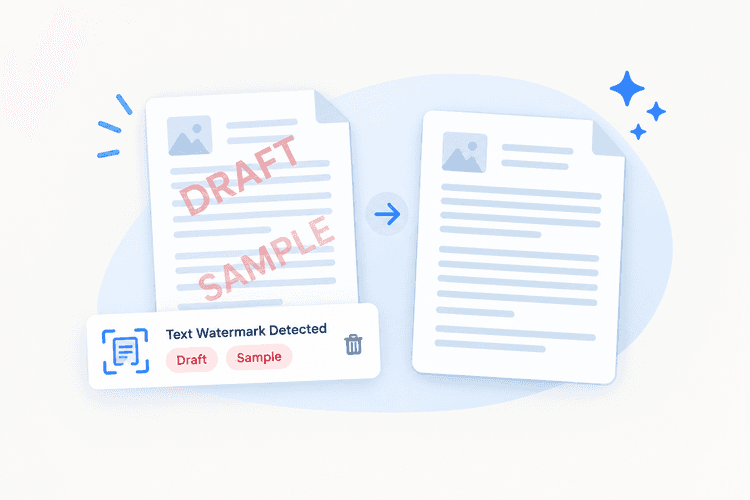
Text overlays
Supported text marks such as Draft or Sample, when recognized as removable watermark elements.

Offline Pdf Software
Remove watermarks from your PDF with a straightforward, offline workflow.
Work with supported text or image-based marks, and select your own image to help identify the watermark you want to remove. Review each processed PDF before using or sharing it.
Select an image to help identify a supported mark.
Remove PDF watermarks with more control
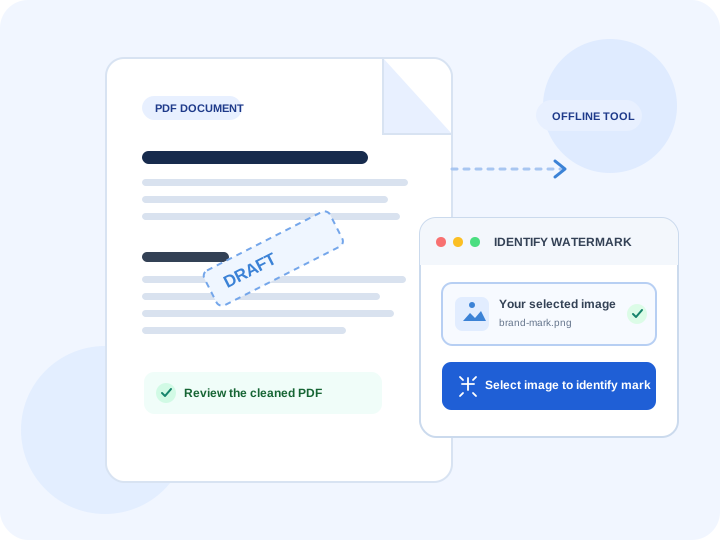
What can be removed depends on the PDF structure and how its watermark is represented.
Supported text marks such as Draft or Sample, when recognized as removable watermark elements.
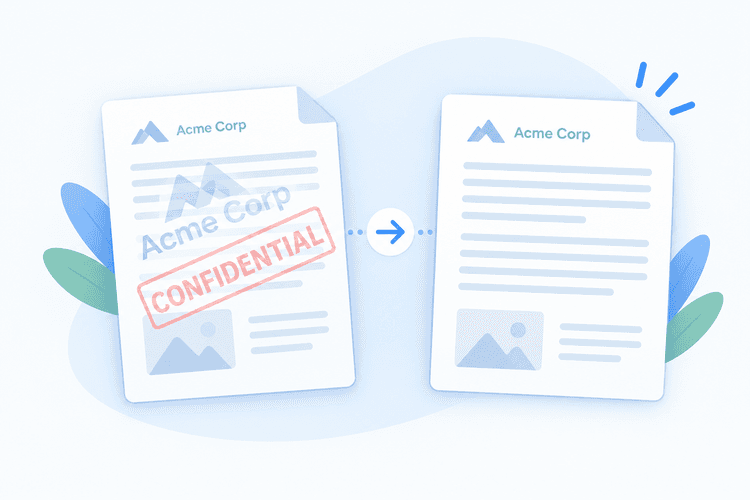
Supported graphics and branding images. Select your own image to help identify the mark.
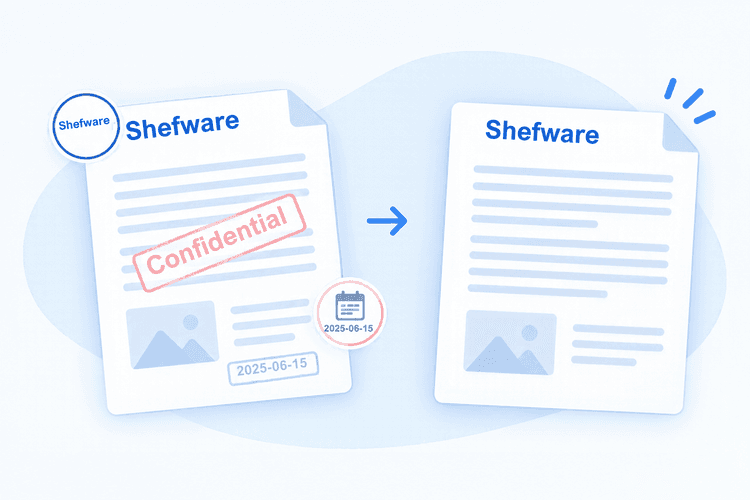
These may be removable when supported and recognized in the PDF; results depend on the document.
Select an image to help identify a supported mark, then process multiple PDFs in a batch.
CUSTOM IMAGE SELECTION
Select an image of your own to help target a supported logo or graphic instead of relying only on a general removal option.
Illustrative only. Results depend on how the watermark is embedded and whether it is supported.
BULK PDF PROCESSING
Add several documents and process them together, subject to your version's limits.
Demo output includes a watermark.
Identify supported marks, process your PDFs, and review the resulting documents.
Clear supported watermark elements from PDF documents in a simple operation.
Choose your own image to help identify the watermark you want to remove.
Process multiple PDFs in a single batch, subject to your version's limits.
Work with supported text-based and image-based watermark elements.
Prepare PDFs without the supported watermark overlays you selected for removal.
Follow a straightforward workflow to select, process, and save your documents.
Process up to 5 files per bulk conversion; demo output includes a watermark.
A practical offline workflow with capabilities that depend on your version and the structure of each PDF.

Remove a supported watermark from your PDF through a straightforward workflow.

If supported, process password-protected PDFs by providing the required credentials. Only modify files you are authorized to change.

The tool aims to keep the result as close to the original as possible. Review text, images, fonts, colors, and page layout after processing.

Process PDFs with an offline desktop tool, which can be useful when handling business documents and managing files carefully.

Where supported, select your own image to help identify the watermark you want to remove.

Process multiple PDFs together. The demo supports up to 5 files per batch and adds a watermark to the output.
See how the watermark-removal workflow works
Follow a straightforward workflow to remove supported watermarks from your PDF documents.
Select the PDF documents you want to process. Bulk processing is subject to your version's limits.
Review the confirmed demo limits and check current plan details for full-version features and conditions.
| Feature | Demo Version | Full Version |
|---|---|---|
| Batch Processing | ||
| Text Watermark Removal | ||
| Image Watermark Removal | ||
| Output Watermark | ||
| File Limit | Up to 5 files per batch | See current plan details |
| Cost | Free demo | View pricing |
Download Free Demo & Check System Requirements
Size: 196 MB
Version: 1.0.0.1
Hard Disk
1 GB space required
RAM
Minimum 4 GB RAM (Recommended 8 GB)
Processor
Intel® Core™ 2 Duo CPU E4600 @ 2.40GHz 2.39GHz or above
Operating System - Windows 11, 10, 7 (64-bit), Windows Server 2025
Prerequisites - .NET Framework 10
Product Type - Offline desktop tool
File Type - PDF documents
Shefware PDF Watermark Remover gave our team a straightforward way to clean up supported marks on project PDFs. Being able to review the output before saving made the process easier.
Document Manager
Frequently asked questions
Yes. The demo version lets you try the tool with bulk conversion of up to 5 files. The resulting output includes a watermark.
The demo version supports up to 5 files per bulk conversion.
Yes. The demo version adds a watermark to the processed output.
Yes. Shefware provides an option to select your own images to identify the watermark you want to remove.
The tool is intended to handle supported watermark elements. These may include text or images, depending on the removal options available and how the watermark is represented in the PDF.
You can use the image-selection option to target supported image-based watermarks. Results may depend on how the watermark is embedded in the document.
Yes. Bulk conversion is available, with a limit of up to 5 files per conversion in the demo version.
Results depend on the PDF structure and the watermark itself. Review the processed document to ensure its text, images, and layout remain suitable for your intended use.
This depends on the document's security settings and the tool's support for protected files. You must have the necessary password and authorization to modify the document.
The demo is limited to 5 files per bulk conversion and adds a watermark to the output. Refer to the current Shefware plan details for the full version's limits and available features.