Securely Migrate OneDrive Files, Folders, and Documents Between Accounts
Transfer data between OneDrive accounts without losing files, folders, or structure. The OneDrive to OneDrive Migration Tool securely moves selected data while preserving its original organization. Ideal for account consolidation, employee offboarding, and tenant migration.
★ Migrates files under 20 MB, with up to 30 for one user.
Securely Migrate OneDrive Files, Folders, and Documents Between Accounts
Import all your OneDrive data or migrate only what you need.
Allow user to migrate both single-user and multi-user OneDrive environments.
During OneDrive to OneDrive migration, the original hierarchy of folders is kept intact.
Ability to connect your Office 365 tenants securely to migrate OneDrive data.
Software allows OneDrive migration using batches to manage large number of OneDrive users.
Every migration is saved, giving you the ability to go back to it and review.
Built to support bulk migration when you're moving data for multiple users at once.
Straightforward enough for non-technical staff, powerful enough for IT teams.
In case of mergers, restructure of the organization or moving to a newer Microsoft 365 tenant, it is essential to ensure OneDrive's data is transferred smoothly. This tool transfers accounts from one tenant to another while keeping the folder structure in the same order as it was left by users.
Departing staff leave behind important OneDrive data that needs to be taken care of. Admins can move the data of the departing employee before closing his account in order to maintain the data.
Often teams have their data split among several OneDrive accounts. Instead of carrying out the operation manually, this tool helps in adjusting the data by merging several accounts into the one.
When moving from a personal OneDrive account to a OneDrive account registered for business purposes, the user will be able to transfer the existing files without starting from the very beginning.
Engage in migration between two different OneDrive accounts regardless of the tenant type.
Migrate an entire OneDrive account in one go, or pick only the specific files and folders that actually need to move.
Make the platform link the source and the destination OneDrive accounts by entering the Microsoft 365 credentials. The tool checks for access before proceeding with the transfer.
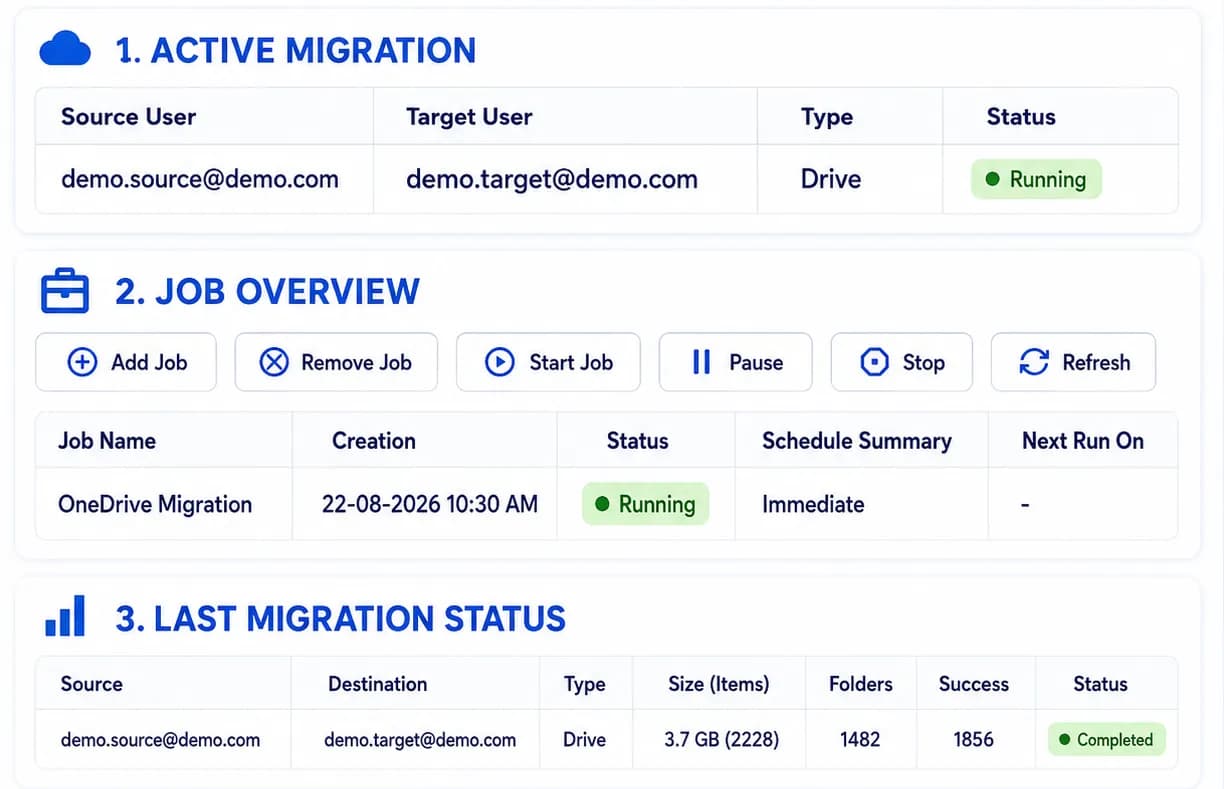
The migration is a structured activity that functions as a standalone job with separate configurations, meaning it is easy to monitor, replicate and review when needed.
The system is designed to migrate several users simultaneously so that the IT department does not need to carry out the entire procedure again each time.
Start the data movement immediately or choose a better time to carry it out with the help of the same screen.
The files and folders are delivered to the target directory in the same order they were presented on the source drive.
Preserve file names, metadata, and folder structure during OneDrive-to-OneDrive migration without altering the original data.
When the completion of the job is achieved, it is possible to see everything that has been migrated and confirm it has been transferred without malfunctions.
Enter your source and destination OneDrive accounts and verify the connection.
Choose the entire account, specific folders, files, or required data types to migrate.
Set the required migration options, including filters and other preferences.
Start the migration immediately or schedule it for a convenient time.
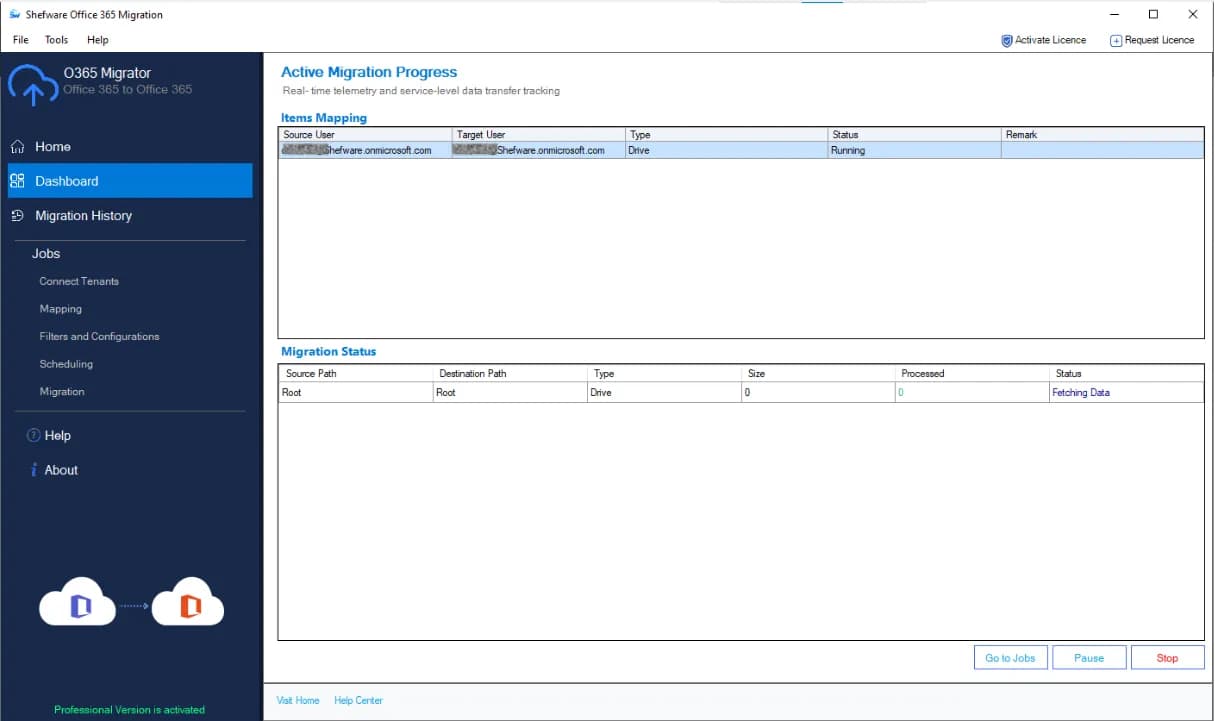
Launch the migration and track its progress in real time.
Review the migration summary and confirm that files, folders, and structure were transferred successfully.
Watch our step-by-step video tutorial to understand how the software works and get started quickly.
Not every migration consists of one time job. Some organizations need to migrate data one time and have it done; however, others require continual processing of information. Shefware can deal with either type of job.
Designed specifically for OneDrive to OneDrive migration, it handles permissions, shared folders, and Office 365 tenant structures the way they actually work.
You don't need a migration specialist on staff to use this. Every step, from connecting your accounts to reviewing what got moved, is laid out clearly, so you always know where things stand.
| Feature | Demo Version | Full Version |
|---|---|---|
| File Size Limit | Up to 20 MB per file | No limitation |
| Files per Folder | 25–30 files | Unlimited |
| User Accounts | Single user | Multiple users / bulk migration |
| Folder Hierarchy Preservation | Yes | Yes |
| Job-Based Migration | Yes | Yes |
| Scheduled Migration | Yes | Yes |
| Migration Reports | Limited | Full detailed reports |
| Technical Support | Standard | Priority |
Download Free Demo & Check System Requirements
Size: 40.73 MB
Version: 1.0.0.1
Hard Disk
10 GB space required
RAM
Minimum 8 GB RAM (Recommended 16 GB)
Processor
Intel® Core™ 2 Duo CPU E4600 @ 2.40GHz 2.39GHz or above
Operating System - Windows 11, 10, 8.1, 8, 7, Vista, XP, 2000, 98, NT and 95 and Windows Server 2022, 2019, 2016, 2012, 2008 R2, 2008, 2003 R2, 2003
Prerequisites - Requires Internet Connectivity, .NET 10
Microsoft Office 365 - Enterprise E1 / E3 / E5 / Business Premium / Essentials & Exchange Online Plan 1 / Plan 2 & Office 365 A1 / A3 / A5 / F1
We had to move OneDrive data for close to forty employees during a tenant switch, and I was honestly dreading it. The job-based setup meant I could configure it once and just monitor progress instead of babysitting every account individually.
IT Systems Administrator
It moves your files, folders, and data from one OneDrive account to another, whether that's between two users, two tenants, or as part of a larger organizational move, while keeping the original folder structure intact.
Both options are available. You can run a complete account migration or choose specific folders and files if that's all you need to move.
Yes. The demo version lets you migrate files up to 20 MB in size, with a limit of 25–30 files per folder, for a single user account, enough to test how the tool handles your data before purchasing.
Yes. You can choose to start the migration immediately or schedule it for a later time, depending on what works for your team.
Yes, the full version supports bulk OneDrive migration, making it a practical option for IT admins managing data for several users at once.