No Scripting Required
Skip PowerShell and SPMT command-line work entirely.
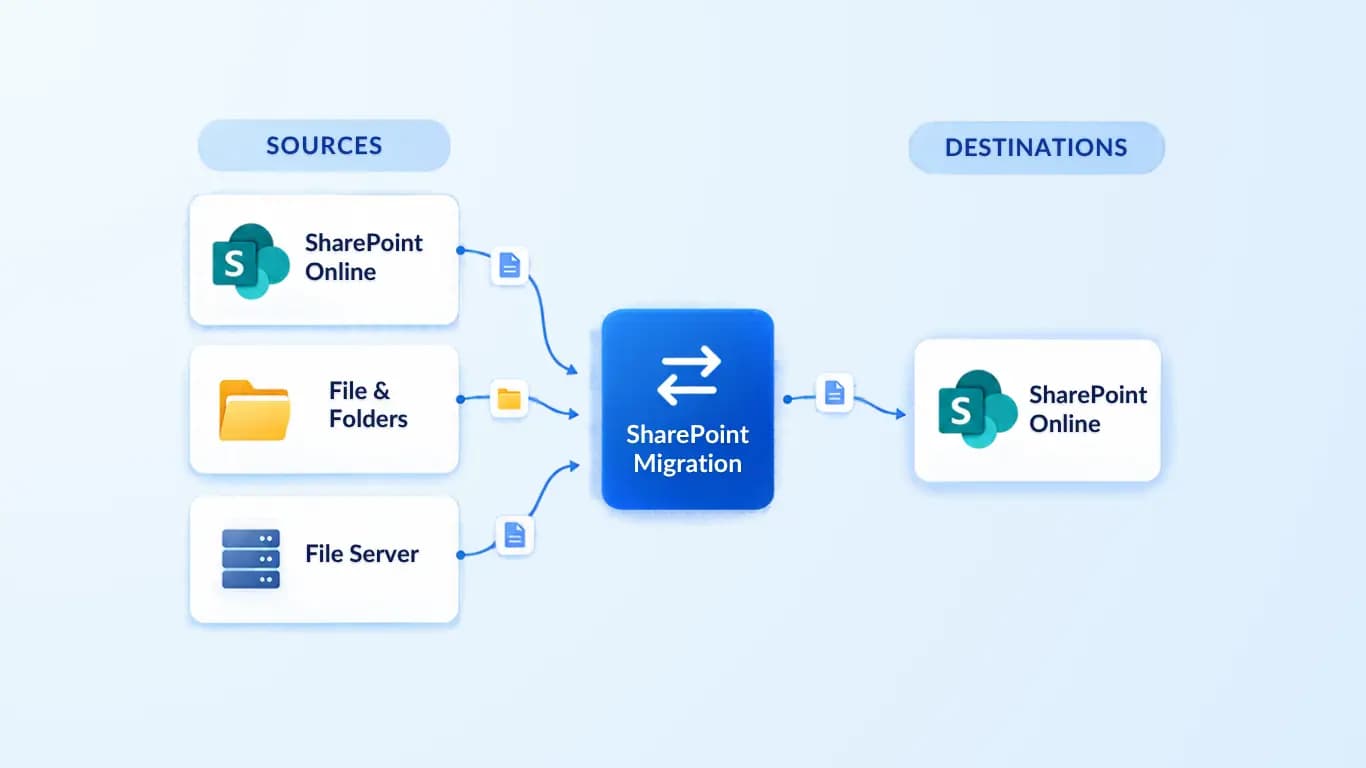
Seamlessly migrate SharePoint content with Shefware SharePoint Migration Software for IT professionals, enterprise MSPs, and companies managing complex data migration projects, including company mergers, acquisitions, tenant consolidation, tenant separation, and SharePoint tenant-to-tenant migrations.

Skip PowerShell and SPMT command-line work entirely.
Keep business disruption low throughout the migration.
A trusted solution for SharePoint-to-SharePoint migrations.
Key highlights
Security
Protect business information using the security controls implemented in the migration tool.
Use supported Microsoft interfaces to transfer SharePoint content between environments.
Connect source and destination environments using the authentication methods supported by the tool.
Understand how migration data is processed, where it is stored, and how temporary data is handled.
Key features
Everything we migrate
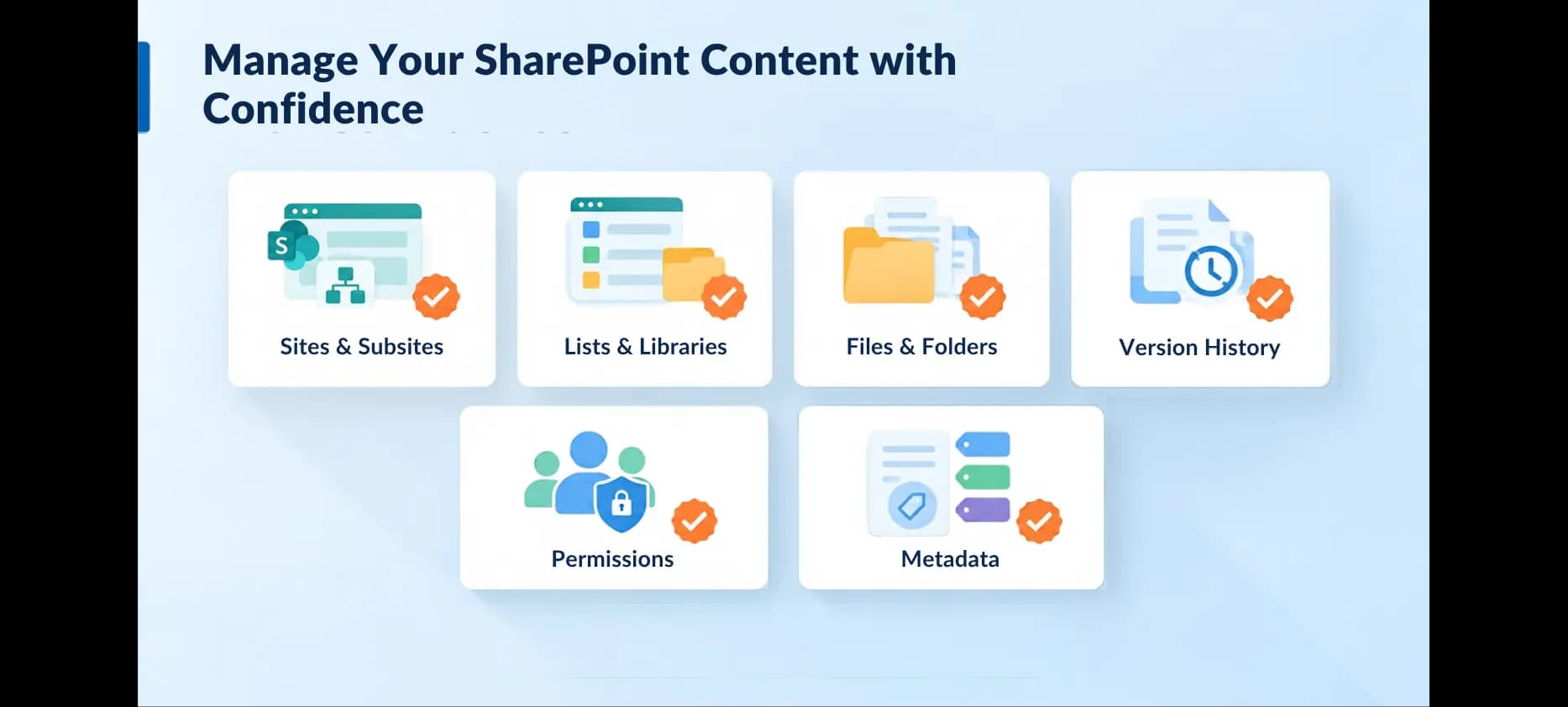
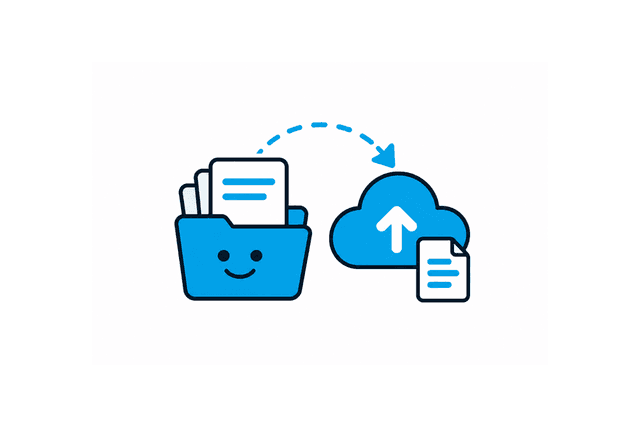
Sites, subsites, team sites, communication sites and supported site settings
Documents, folders, document sets and supported library properties
List records, columns, attachments and views where supported
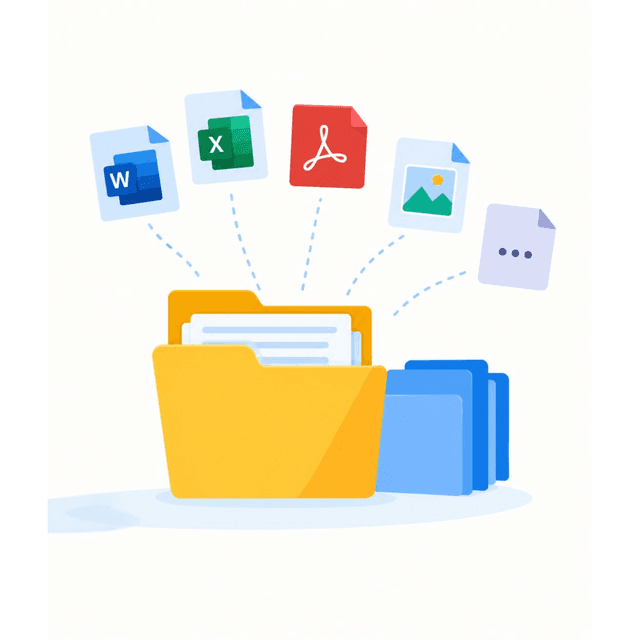
Office documents, PDFs, images and other supported file formats
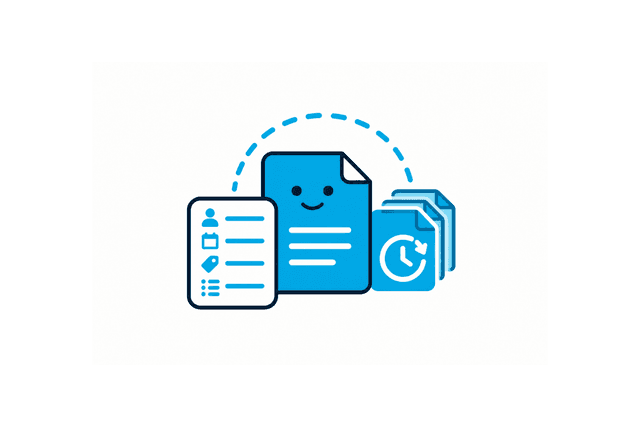
Created and modified dates, authors, modifiers and custom metadata fields
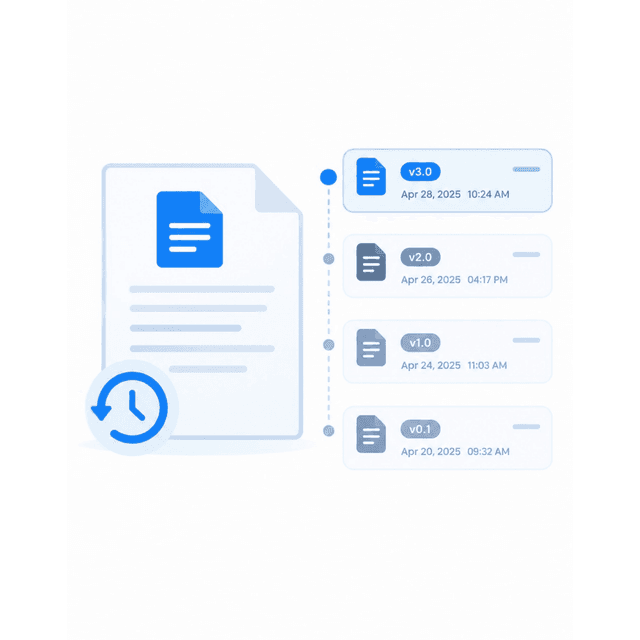
Latest versions, selected versions or complete version history where supported
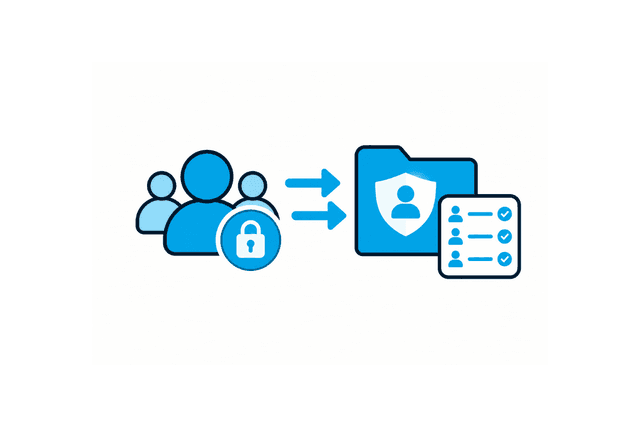
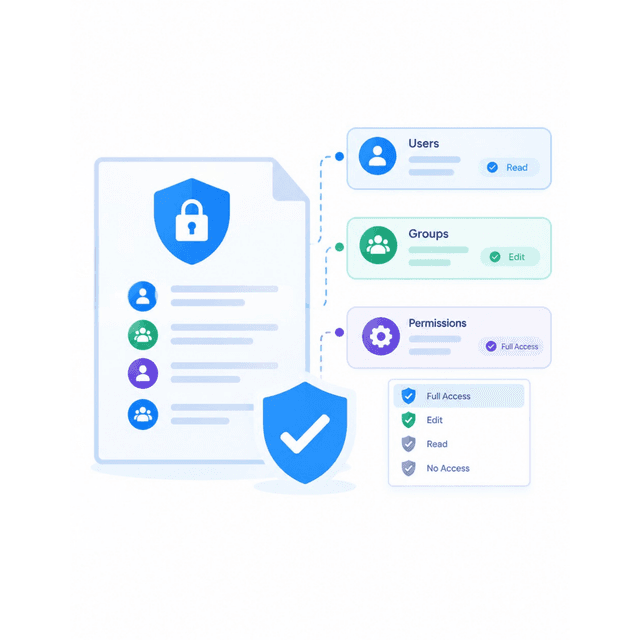
Supported users, groups, permission levels and access settings
Map source identities to destination identities where supported
Key advantages
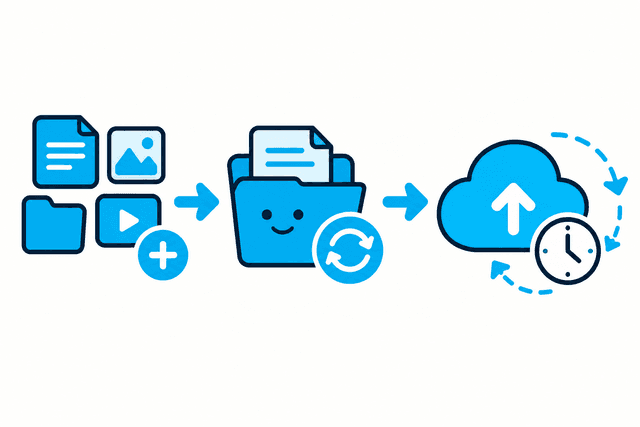
Organize migration tasks in one workflow, from configuration to execution and review.
Create, configure, and manage migration jobs using the available controls.
Configure source and destination SharePoint environments using supported connection methods.
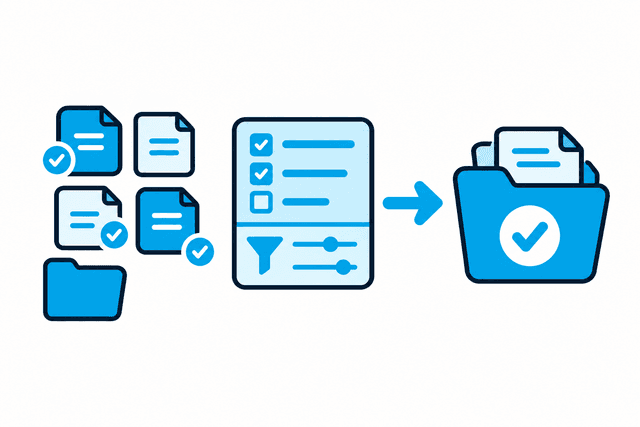
Choose the SharePoint content you need to migrate using available selection and filtering options.
Plan migration activities around your team's operational requirements, if scheduling is supported.
Review migration status and job results to identify items that need further attention.
Move supported SharePoint content between source and destination environments, including tenants if supported.
Follow a clear, organized workflow designed to help IT teams manage migration tasks efficiently.
How it works
Create a migration project and define the details needed to organize the job.
Configure the source and destination SharePoint environments for migration.
Choose the supported sites, libraries, lists, files, and folders to transfer.
Review the available options and configure the settings required for migration.
Review your migration setup and start the transfer, or schedule it if supported.
Track migration status, review job results, and identify items that need attention.
What our clients say
Shefware SharePoint Migration Tool helps organize migration tasks and makes the process easier to manage.
FAQ
Shefware SharePoint Migration Tool helps IT teams manage SharePoint data migration through an organized workflow for configuring connections, selecting content, running migrations, and reviewing results.
Supported content may include SharePoint sites, document libraries, lists, files, folders, metadata, permissions, and document version history.
Cross-tenant migration depends on the supported source and destination environments. Check the product's current compatibility and requirements before starting a migration.
Selective migration depends on the available content selection and filtering options. Use the supported controls to choose the content you want to transfer.
Yes, you can migrate SharePoint lists, list items, and their attachments using the supported migration features.
Yes, the Shefware SharePoint Migration Tool supports migrating document libraries, files, and folder hierarchies while maintaining the supported folder structure and data integrity.
Yes, you can migrate SharePoint site pages and supported web parts efficiently while preserving supported page content and configurations.
The tool may preserve supported document properties and metadata during migration. The available fields, including standard and custom properties, depend on the implemented functionality.
Permission migration depends on the tool's supported permission handling and user-mapping capabilities. Verify which site, library, list, folder, and item-level permissions can be transferred.
Version history migration depends on the supported capabilities of the tool. Check whether the migration supports the latest version, selected versions, or complete version history.
Bulk migration capabilities depend on the available migration workflow. Check the supported limits for processing multiple sites, libraries, or migration items.
Incremental migration may allow eligible new or updated content to be transferred after the initial migration. Availability depends on whether this functionality is implemented in the product.
You can validate migrated data by reviewing migration logs, job summaries, and detailed reports to verify migration results and identify any items that require attention.
The available monitoring interface can help you review migration status and job results. Progress indicators, logs, and reporting details depend on the features available in the product.
Review the available migration results and error details to identify items that need attention. Retry, resume, and rerun options depend on the tool's implemented recovery capabilities.
The tool's security depends on its implemented authentication, access controls, credential handling, and data-processing practices. Review the product's documented security measures before migrating business data.
Try the free version, then buy when you are sure.