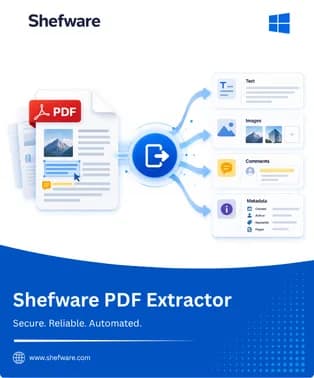
Extract Text, Images, Comments, and Metadata from Any PDF File
Fetch precisely what you require from a PDF file, be it the text, the pictures included in the document, the notes made during the examination, or the document's properties. The Shefware PDF Extractor scans the PDF file, allows you to observe what's there, and exports every single item into whatever format you're utilizing, without modifying anything else in the file.
★ Free Version Limitation: Extracts data from the first page only, for a single PDF file.
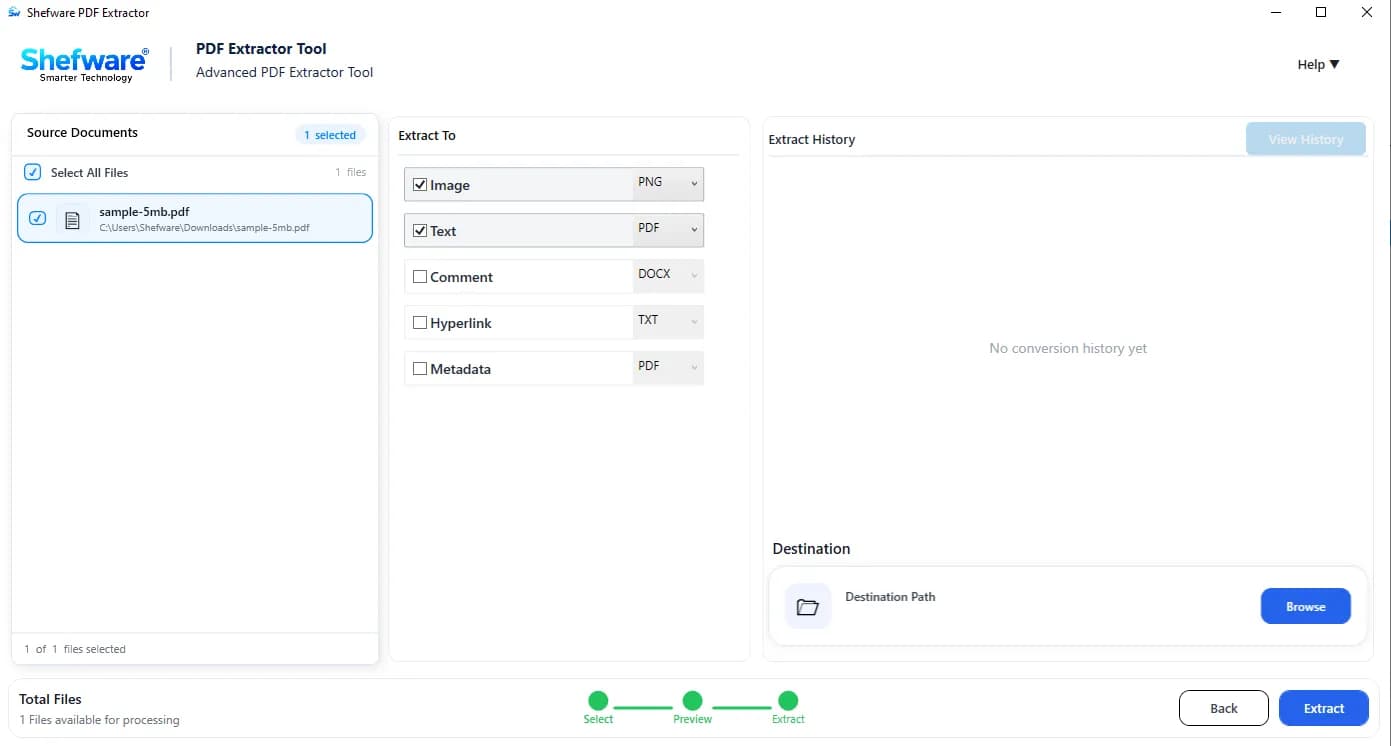
Bulk PDF extractor tool: Batch extract images from PDF to PNG, text, comments, hyperlinks, and metadata from a single PDF or in bulk.
Password Support: Works with password-protected PDF files—enter the password once and extract as usual.
PDF extractor with preview and history: See what you would extract prior to extraction to make sure you want to get it.
Category-Based Extraction: Perform extraction based on categories; extracts only one type of material (such as PDF content extraction software routines).
Extract PDF to multiple formats (PNG, TXT, DOCX): Save documents and images in various formats instead of just one.
Flexible Usage: Easy enough to extract information once; good enough to do this frequently as a PDF batch processing extraction tool.
Integrity: Original structure and quality of the source content is kept intact after extraction.
Extract every embedded component from your PDF documents with complete precision
Reusing material sourced from a PDF document, contract, or manual without typing it again. Use the tool to extract text from PDF tool settings to directly output to a DOC, DOCX, or TXT file and start editing it from there.
Learn how to extract images from multiple PDF files effortlessly. Generally, slideshows, promotional materials, and scanned pages contain useful info hidden in the document.
PDFs that have undergone several modification stages provide the possibility to convert PDF comments to DOCX or extract PDF comments to Word document files to isolate comments and receive separate reports of issues raised using our extract comments from PDF feature.
A PDF received from a customer or colleague in a locked form does not necessarily mean that nothing can be done with the document.
By using the PDF metadata extractor tool free download capabilities to extract metadata from PDF files in bulk, you will see all information about the PDF. This may be useful for auditing or sorting.
PDFs often bury hyperlinks in citations or reference text. Use the extract hyperlinks from PDF to TXT feature to pull every link into one file, making them easy to check, share, or reuse.
Open locked PDFs with the correct password and extract text, images, comments, hyperlinks, or metadata.
Preview the PDF content and embedded data before extracting.
Keep track of previous extraction jobs, source files, and output formats.
Extract only what you need, such as text, images, comments, hyperlinks, or metadata.
Extract PDF text and save it as DOCX, DOC, or TXT for easy editing.
Extract PDF images and save them as PNG, JPG, JPEG, GIF, TIFF, or BMP.
Extract comments and metadata separately while keeping the original information organized.
Extract content while maintaining the original quality, formatting, and layout as closely as possible.
Upload the document that contains the data you want to extract. If the document is password-protected, enter the password.
Look at the document before extracting and see the text, images, links, and other data.
Choose the category or categories of data to be extracted, such as text or images.
Choose the format in which each item of the extracted data will be saved.
Start the extraction process by letting the tool extract data from the document.
Check the output of the extracted files and check the history of the conversion if necessary.
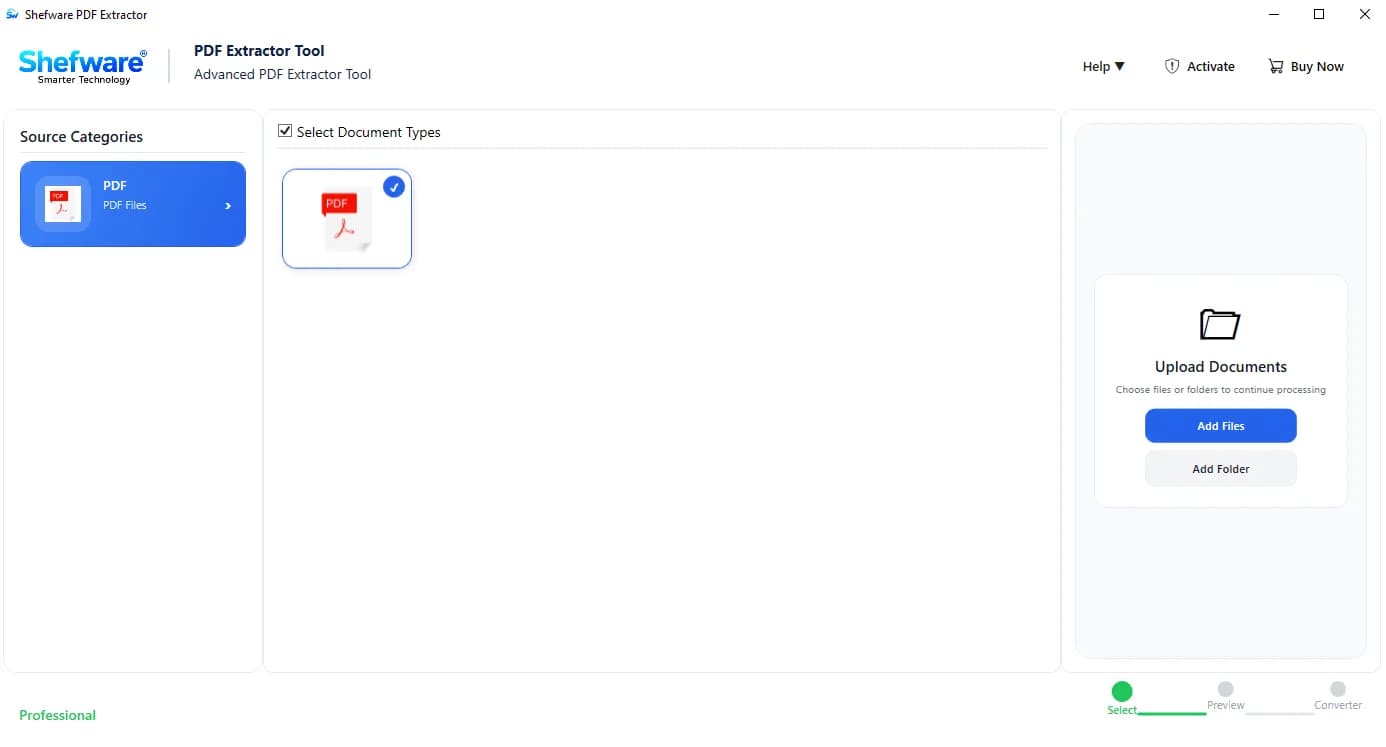
making an extraction decision would be a lot easier if the content were available in advance. Thus, knowing what text, images, or hyperlinks are going to be extracted limits rewrites.
Through the automatic conversion history, there is no necessity to maintain a record of what has been extracted previously, as the system saves.
At the same time, password-protected PDFs are processed without changing the tools, which saves time as it kills the need to unlock the document.
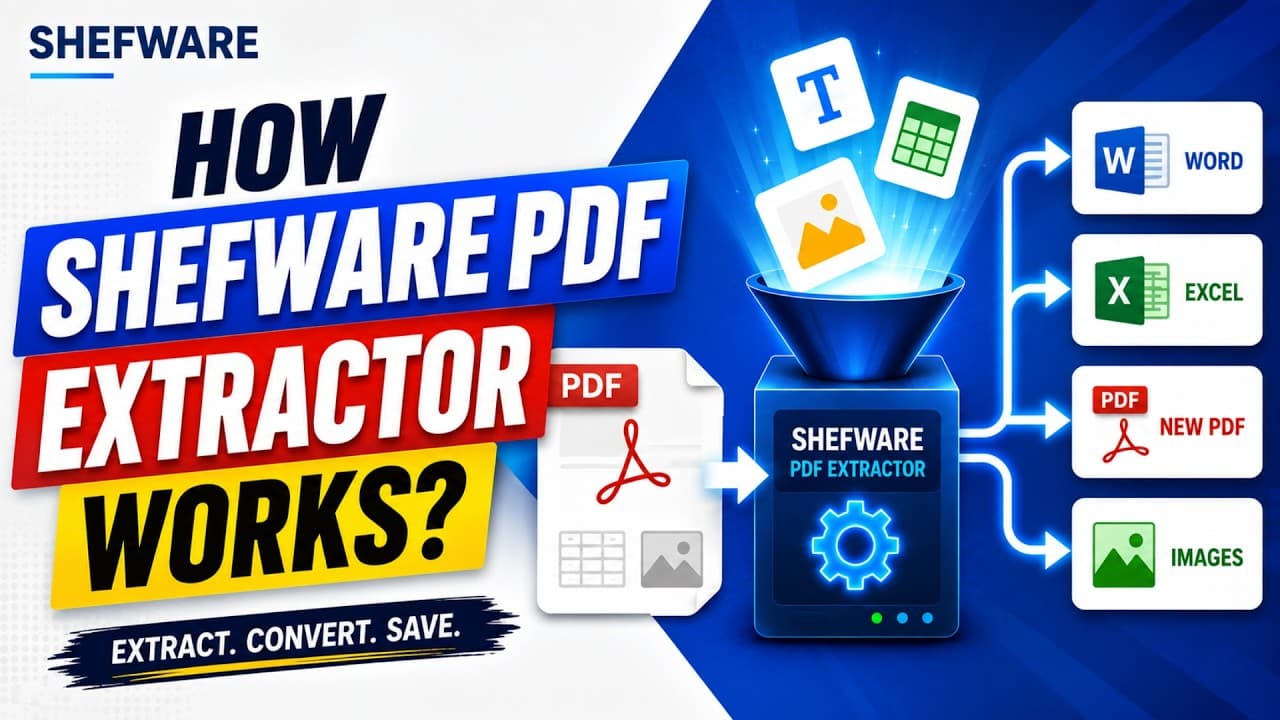
Watch our step-by-step video tutorial to understand how the software works and get started quickly.
| Feature | Demo Version | Full Version |
|---|---|---|
| Page Coverage | First page only | All pages |
| File Handling | Limited | Unlimited |
| Password-Protected PDFs | ✓ | ✓ |
| Preview Before Extraction | ✓ | ✓ |
| Category Filters | ✓ | ✓ |
| Conversion History | Full history | Full history |
| Output Formats | Limited | All supported formats |
Download Free Demo & Check System Requirements
Size: 145 MB
Version: 1.0.0.1
Hard Disk
500 MB space required
RAM
Minimum 4 GB RAM (Recommended 8 GB)
Processor
Intel® Core™ 2 Duo CPU E4600 @ 2.40GHz 2.39GHz or above
Operating System - Windows 11, 10, 8.1, 8, 7 (32 & 64 bit), Windows Server 2025
Prerequisites - .NET Framework 10
Shefware PDF Extractor Tool made batch image extraction from high-res PDF portfolios effortless. It preserved the original quality and saved us dozens of hours.
Digital Asset Manager