Split Excel Files by Rows, Sheets, or File Size
Split large Excel files into smaller and manageable files easily with the Shefware Excel Splitter Tool. The software supports XLS and XLSX files and manages spreadsheets by dividing them while preserving the original data, structure, and formatting.
★ Split the first 25 rows of each Excel file in the demo version.
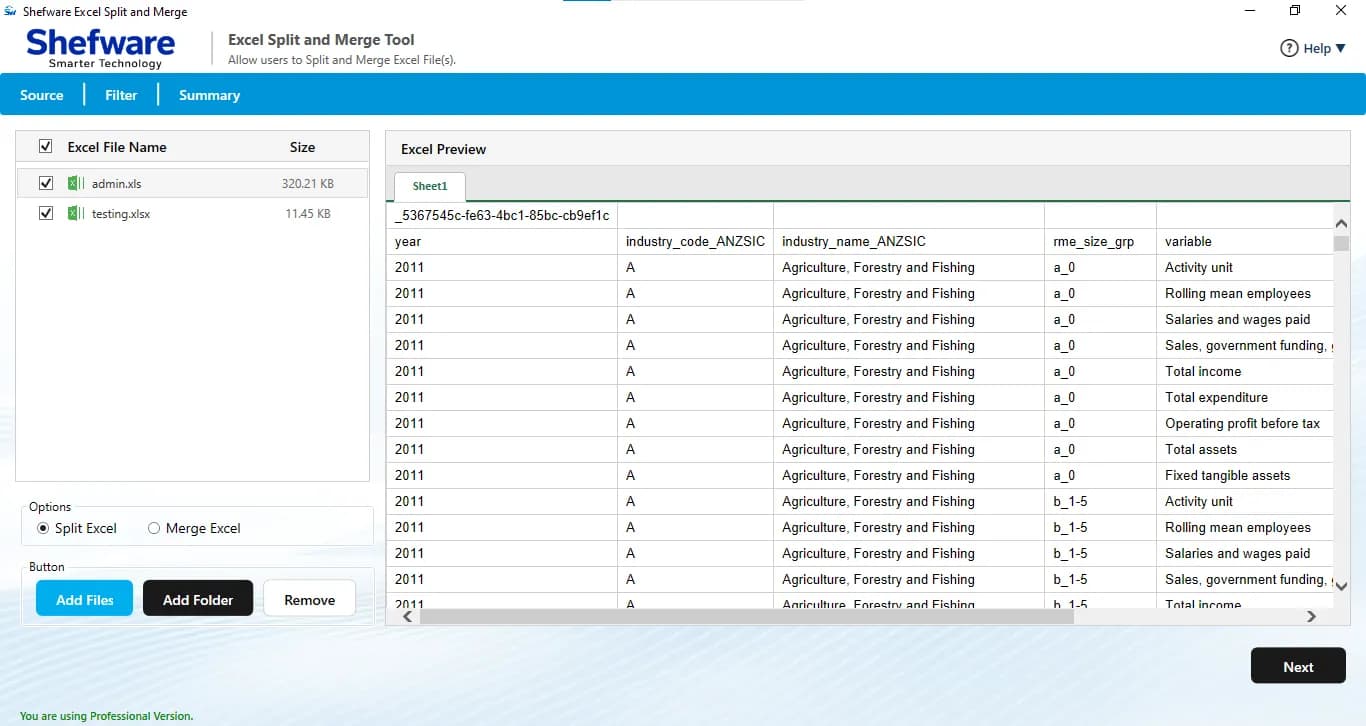
Split large Excel files into multiple small Excel files easily.
Split Excel files based on row, record count, file size, and header row.
Split Excel file into multiple files at once to process several Excel files.
Choose and add entire Excel folders with this Excel Splitter.
Preview XLS and XLSX files before the splitting process.
Preserve and maintain original rows, columns, headers, and formatting.
Save XLS and XLSX files in multiple output formats such as CSV, XLSX, XLS, XML, and ODS.
Ensure complete data integrity throughout the splitting process.
Save the output file to a preferred destination location.
Supports all versions of Windows Operating Systems.
No Microsoft Excel required to use this Excel File Management Tool.
Split the first 25 rows of the selected XLS and XLSX file in the demo version.
Split large Excel files into smaller, manageable files using different splitting features, based on record count, file size, rows, or row headers.
Select the number of records for each output file and automatically create multiple smaller Excel files based on the selected count.
Choose the file size to divide large XLS and XLSX files into smaller files to store, transfer, and manage easily.
Split Excel files according to row headers and save the organized data into individual files with this Excel File Management Tool.
Split Excel by rows and divide the spreadsheet files based on the selected number of rows, saving each output file separately.
Split Excel workbook files into smaller files to easily open, manage, and share.
Split large Excel files into smaller files to keep old or necessary spreadsheet datasets organized for a long period of time.
Split Excel files and create smaller Excel files for easy access, transfer, upload, and management.
Separate large amounts of Excel data into smaller batches based on the required number of rows or records.
Easily split an Excel file into multiple files that are smaller and manageable, so they're easy to share, store, and manage.
Select from different splitting options, including record count, file size, rows, and row headers, to divide Excel files based on specific requirements.
Split an Excel sheet into multiple files at the same time, while processing each spreadsheet separately.
View and read XLS and XLSX files directly within the software before splitting. Easily review rows, columns, headers, and record count.
Maintain the original rows, columns, headers, data, and formatting of Excel files throughout the splitting process.
Save the output files in multiple supported formats, including XLS, XLSX, CSV, XML, and ODS.
Save the split Excel files in a separate output folder to keep the output files organized and easily accessible.
Split the first 25 rows of each Excel file in the trial version of the Shefware Excel Splitter tool before purchasing it.
Download and install the Shefware Excel Splitter tool on your system. Launch the tool to begin the splitting process.
Click Add Files to upload or select multiple XLS and XLSX files on the dashboard. Use Add Folder to add an entire folder with XLS and XLSX files at the same time.
Select any file to view and read its contents in the software. Verify the rows, columns, and records before starting the splitting process.
Select the splitting option based on Record Count, File Size, Rows, or row headers.
Select Browse and choose the location to store the output files.
Click Next to start the splitting process. Once complete, view the summary showing details such as Excel file name, file size, record count, and status.
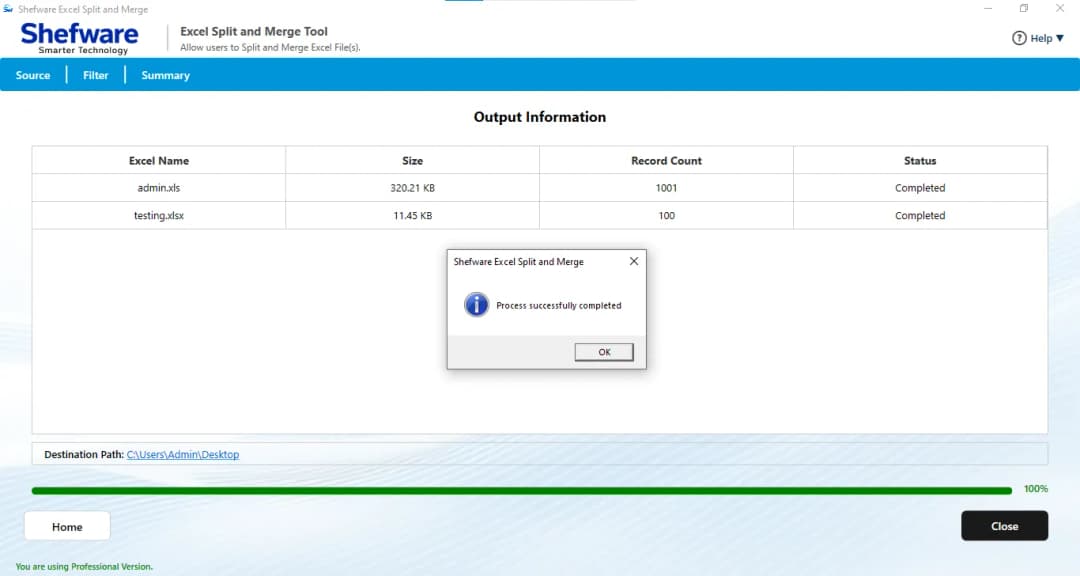
Add one or multiple XLS and XLSX files at the same time and split an Excel workbook into separate files, saving time and manual effort.
Keep the original spreadsheet data, rows, columns, headers, and formatting intact during the process.
Split XLS and XLSX files easily without needing a Microsoft Excel installation on your system.
The tool is fully compatible with all versions of Windows operating systems, providing smooth and reliable Excel file splitting.
Safeguards the original data and maintains the spreadsheet data content accurately.
| Features | Free Trial | Full Version |
|---|---|---|
| Add XLS and XLSX Files | ||
| Add Multiple Excel Files | ||
| Preview Excel File Data | ||
| Multiple Splitting Options | ||
| Split by Record Count | First 25 rows | Unlimited |
| Split by File Size | Limited to first 25 rows | Unlimited |
| Split by Rows | Limited to first 25 rows | Unlimited |
| Split by Row Headers | Limited to first 25 rows | Unlimited |
| Preserve Original Data | ||
| Multiple Output Formats | ||
| Custom Saving Location | ||
| Splitting Limitation | First 25 rows of each file | No limitation |
Download Free Demo & Check System Requirements
Size: 157 MB
Version: 1.0.0.1
Hard Disk
1 GB space required
RAM
Minimum 4 GB RAM (Recommended 8 GB)
Processor
Intel® Core™ 2 Duo CPU E4600 @ 2.40GHz 2.39GHz or above
Operating System - Windows 11, 10, 7(64 bit), Windows Server 2025
Prerequisites - .NET Framework 10
I wanted to split multiple XLS files at once without manually adding the files one by one. The batch feature in this tool has made it quite easy for me to add several files at once.
Data Analyst