Merge Excel Workbooks into a Single File Seamlessly
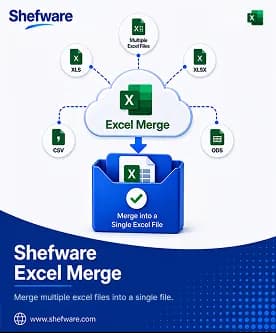
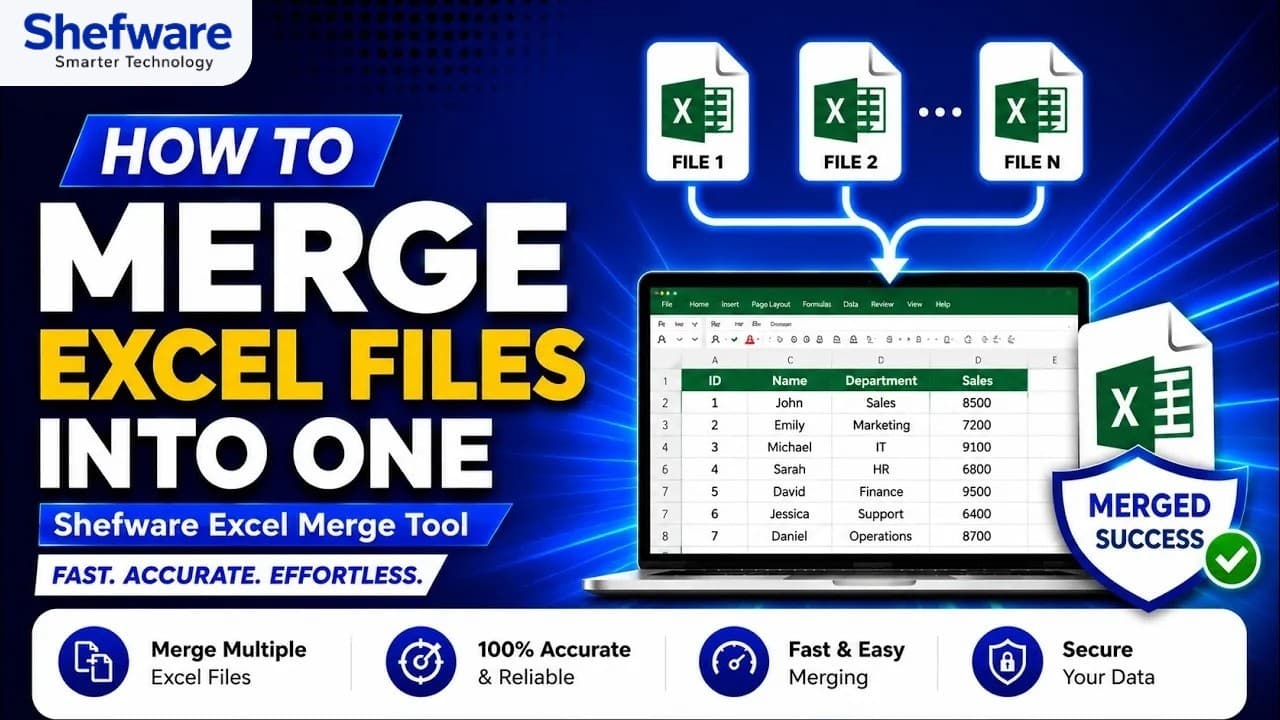
Merge multiple Excel files into a single file while preserving the original data and structure. Use Shefware Excel Merge Tool to merge XLS files and XLSX files in batch into a single worksheet or individual worksheets. The tool maintains rows, columns, headers, formulas, and other spreadsheet elements to merge Excel spreadsheets.
★ Merge the first 25 records of each selected file in the trial version.
Combine Multiple Excel Files into one Excel file.
Batch merge XLSX files and XLS files at once.
Preserve the original rows, columns, headers, formulas, and formatting.
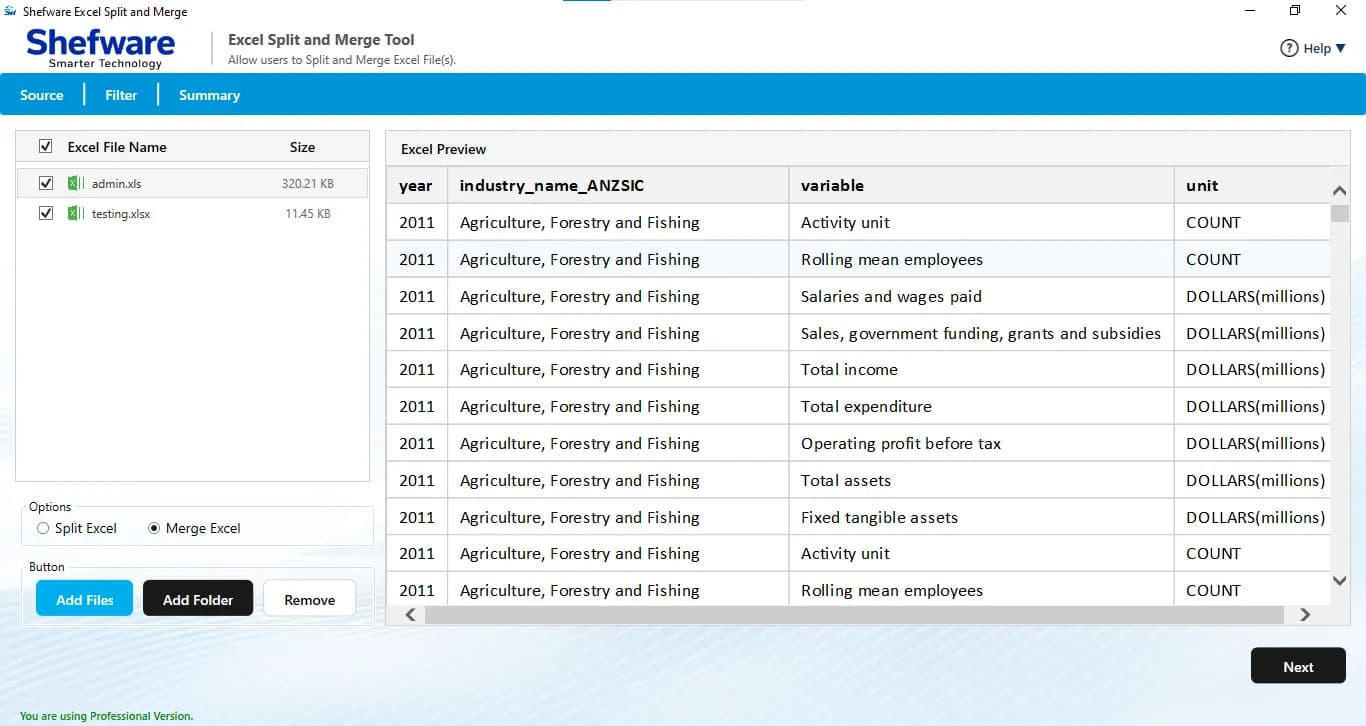
Preview the uploaded Excel files to verify the data.
Merge large Excel files without any size limitations.
Add individual Excel files or an entire folder to start the merging process.
Features three advanced merge options: Select Primary File, Single Worksheet, and Individual Worksheet.
Merge the files into one worksheet or maintain separate worksheets to store files individually.
Compatible with all versions of Windows Operating Systems.
Merge the first 25 records of each selected XLS and XLSX files in the demo version.
Supports Excel files from different platforms and environments
Merge Excel Worksheets of sales reports from different months into one file for easier analysis.
Merge XLS files and XLSX files from several branches, stores, or regional offices into one report.
Combine attendance, payroll, performance, or other employee spreadsheets from different departments into one merged file.
Merge expense, revenue, budget, or transaction worksheets from different departments into a single financial analysis report.
The software provides three advanced merge options to help you merge Excel sheets.
Select a particular Excel file as the primary workbook and merge data from other selected files into an organized file.
Merge data from multiple Excel files into a single worksheet for easy viewing, analysis, and management.
Merge multiple Excel files into a single workbook while maintaining the data from each separate worksheet.
Preview the added Excel files to merge Excel sheets and verify the selected data and file content. Scan and analyze the data in the files to check the data accuracy before starting the merging process.
Test and evaluate the Shefware Excel Merge Tool to explore the merging features before purchasing the software. The trial version lets you merge the first 25 records of each selected XLS and XLSX file while preserving the original format and structure.
Merge various Excel files into a single Excel file while keeping the spreadsheet data organized and easily manageable.
Combine multiple XLS and XLSX files at once instead of processing each file individually.
Maintain and preserve the original rows, columns, headers, formulas, and formatting throughout the merging process.
Preview the uploaded XLS and XLSX files and verify the data before starting the merging process.
Process and merge large Excel files without any size limitations, without splitting the Excel files into smaller files.
Browse and upload separate XLS and XLSX files, or choose an entire folder containing multiple Excel files.
Select from Primary File, Single Worksheet, and Individual Worksheet options to organize the output file.
Merge worksheets into one, or maintain all the files in separate worksheets within a single workbook.
Combine the first 25 records of each selected XLS and XLSX file to test and evaluate the features before purchasing.
Runs smoothly on all versions of Windows operating systems, ensuring seamless and quick data processing.
Download and install the Shefware Excel Merger tool on your system. Launch the software to start the merging process.
Click Add Files or Add Folders to browse and upload the XLS and XLSX files on the dashboard.
View and read the selected Excel files to verify the data before starting the merging process.
Choose the preferred merging option — Select Primary File, Single Worksheet, or Individual Worksheet.
Choose the desired destination location to store the output merged file.
Click Merge to combine multiple Excel files into one while maintaining data integrity, then open the destination folder to view the result.
Navigate through an easy interface without any technical knowledge to combine multiple Excel files into one.
Quickly process and merge multiple Excel files with no data loss throughout the process.
Maintain the original rows, columns, headers, formulas, and formatting while combining multiple Excel files.
Select between primary file, single worksheet, and individual worksheet features to merge files based on your requirements.
| Features | Free Trial Version | Professional Version |
|---|---|---|
| Add XLS and XLSX Files | ✓ | ✓ |
| Add Multiple Excel Files | ✓ | ✓ |
| Add Complete Folder | ✓ | ✓ |
| Preview Excel Files | ✓ | ✓ |
| Merge Multiple Excel Files | First 25 Records | Unlimited |
| Select Primary File | ✓ | ✓ |
| Merge into Single Worksheet | ✓ | ✓ |
| Merge into Individual Worksheets | ✓ | ✓ |
| Preserve Rows, Columns & Headers | ✓ | ✓ |
| Maintain Formulas & Formatting | ✓ | ✓ |
| Merge Large Excel Files | First 25 Records | ✓ |
| Save Merged Excel File | ✓ | ✓ |
| Windows Compatibility | ✓ | ✓ |
Watch our step-by-step video tutorial to understand how the software works and get started quickly.
Download Free Demo & Check System Requirements
Size: 125 MB
Version: 1.0.0.1
Hard Disk
100 GB space required
RAM
Minimum 8 GB RAM (Recommended 16 GB)
Processor
Intel® Core™ 2 Duo CPU E4600 @ 2.40GHz 2.39GHz or above
Operating System - Windows 11, 10, 8.1, 8, 7, Vista, XP, 2000, 98, NT and 95 and Windows Server 2022, 2019, 2016, 2012, 2008 R2, 2008, 2003 R2, 2003
Prerequisites - Requires Internet Connectivity, .NET 10
Microsoft Office 365 - Enterprise E1 / E3 / E5 / Business Premium / Essentials & Exchange Online Plan 1 / Plan 2 & Office 365 A1 / A3 / A5 / F1
I regularly work with Excel reports from different departments and combine the files using manual methods. The Shefware Excel Merge Tool makes it easier to merge the files and has made the tasks seamless.
Data Analyst