Batch convert multiple files to a single file format effortlessly.
Convert your single or multiple image files to different formats while maintaining original quality. Seamlessly convert various image formats with an advanced Image Converter designed for photographers, web developers, digital marketers, and other everyday use cases.
★ Free download allow you to view and convert 5 images.
Convert single or multiple image files into the desired format with ease using the Shefware Image Converter Tool and preserve the original image quality or size.


Batch convert multiple images to a single file extension at the same time.
Convert images from multiple sources such as PNG, JPG, BMP, WEBP, GIF, TIF, TIFF, SVG, ICO, and SVG to different image formats or PDF file.
Convert images to multiple destination formats, including PDF, JPG, JPEG, PNG, BMP, GIF, TIFF, and TIF.
Preview the selected image to ensure the correct chosen file with jpg image converter.
The image to PNG converter preserves and maintains the original quality, resolution, and size of the images.
Automatically applies the appropriate image position, page size, margins, and orientation for a professional output image.
Convert single or multiple image files into a PDF document at the same time.
Store all converted image files in one folder for quick access.
Discover some of the use case scenarios of the Shefware Image Converter Tool.
Convert image into PDF using image to PDF Converter to create reports, presentations, brochures, and other professional documents while maintaining a clean and organized layout.
Convert image in JPG format and create images in a suitable format for websites, email campaigns, online advertisements, etc to ensure better compatibility and performance.
Convert image file to JPG or WEBP to enhance website performance and user experience.
Convert image jpeg to JPG, PDF, TIFF, GIF, etc and easily open, view, and share across different devices.
Each conversion job is stored as an individual session, keeping all the conversion details, including source files, destination path, output format status, and reports, in one place. Revisit the previous sessions anytime to review, monitor, and manage your conversion records.
Test and evaluate the Shefware Image Converter Tool with the free trial feature, allowing you to convert 5 image files into a single output format. The trial version adds a watermark to the converted files, enabling you to verify the software’s features and output quality. Upgrade to the licensed version to convert the files without a watermark.
Experience the advanced capabilities designed to deliver accurate, high-quality, and hassle-free image conversion for every requirement.
Image Converter Tool allows Batch of images to manage bulk images conversion quickly while maintaining accuracy and quality.
Convert your image regardless of the size. Supports high-resolution image files for smooth and reliable conversions.
Convert image to PDF and save files individually. Automatically create a separate folder for batch conversion to keep output organized.
View selected images before the conversion process to verify the correct files and ensure quality before processing.
Convert JPG images or any image while maintaining the original image quality, resolution, and size during conversion.
Save the converted files to your desired location for easy access and organized file management with the image to SVG converter.
Automatically apply the appropriate page size, margins, and orientation settings to produce a professional output file.
Fully compatible with all versions of the Windows operating systems, with reliable performance and compatibility.
Convert jpeg image to JPG, TIFF, TIF, GIF, etc to various output formats such as PDF, BMP, PNG, etc.
Displays a detailed conversion report including source file, source location, output location, output format, status, and message.
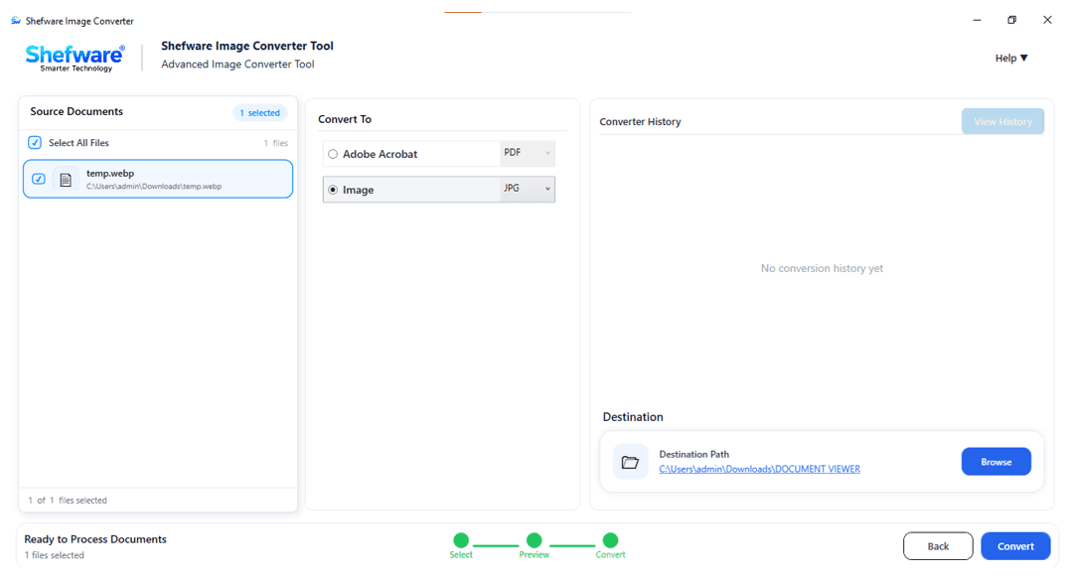
Follow simple steps in the Shefware Image Converter Tool to convert images into different formats.
Choose the source image for the conversion. Identify and select the formats from PNG, JPG, JPEG, etc.
Click on Add Files or add folders to upload the images. You can upload a single image or multiple images at the same time.
View the selected images before conversion to ensure the correct files have been chosen, and remove unnecessary files before conversion.
Choose the desired output format from PDF, JPG, JPEG, PNG, etc.
Browse and select the destination location where the output image files will be stored.
Click on Convert to start the conversion process. Once the conversion process is completed, the file is saved to the desired location path and displays a detailed conversion report.
| Features | Free Version | Professional Version |
|---|---|---|
| Convert Image Files | Up to 5 Files | Unlimited Files |
| Supported Input Formats | ✓ | ✓ |
| Supported Output Formats | ✓ | ✓ |
| Batch Image Conversion | ✓ (Up to 5 Files) | ✓ (Up to 50 image files at once) |
| No File Size Limit | ✓ | ✓ |
| Preview Images Before Conversion | ✓ | ✓ |
| Select Output Folder | ✓ | ✓ |
| Organized File Saving | ✓ | ✓ |
| Automatic Page Formatting | ✓ | ✓ |
| Preserves Image Quality | ✓ | ✓ |
| Conversion Status Report | ✓ | ✓ |
| Windows Compatibility | ✓ | ✓ |
| Watermark-Free Output | ✗ | ✓ |
| Free Updates | ✗ | ✓ |
| Technical Support | Limited | Priority |
| License Validity | Trial | Full License |
Discover what makes our conversion engine fast, secure, and user-friendly.
Get professional assistance from an experienced support team to resolve queries and receive effective solutions.
Convert multiple images efficiently with optimized processing speed, ensuring a smooth and time-saving conversion experience.
The image files are processed and stored locally on your system, ensuring complete data safety and security, without relying on external servers.
The simple and easy interface allows users to convert images effortlessly. Navigate the software with organized features, enabling even beginners to convert images.
Download Free Demo & Check System Requirements
Size: 231 MB
Version: 1.0.0.1
Hard Disk
1 GB space required
RAM
Minimum 4 GB RAM (Recommended 8 GB)
Processor
Intel® Core™ 2 Duo CPU E4600 @ 2.40GHz 2.39GHz or above
Operating System - Windows 11, 10, 7(64 bit), Windows Server 2025
Prerequisites - .NET Framework 10
I am mainly associated with the various social media platforms where I have to prepare creative posts. The tool has made it easy for me to convert the images into different file formats. Thanks, Shefware.
Social Media Manager
Find answers to the most common questions related to Shefware Image Converter Tool.