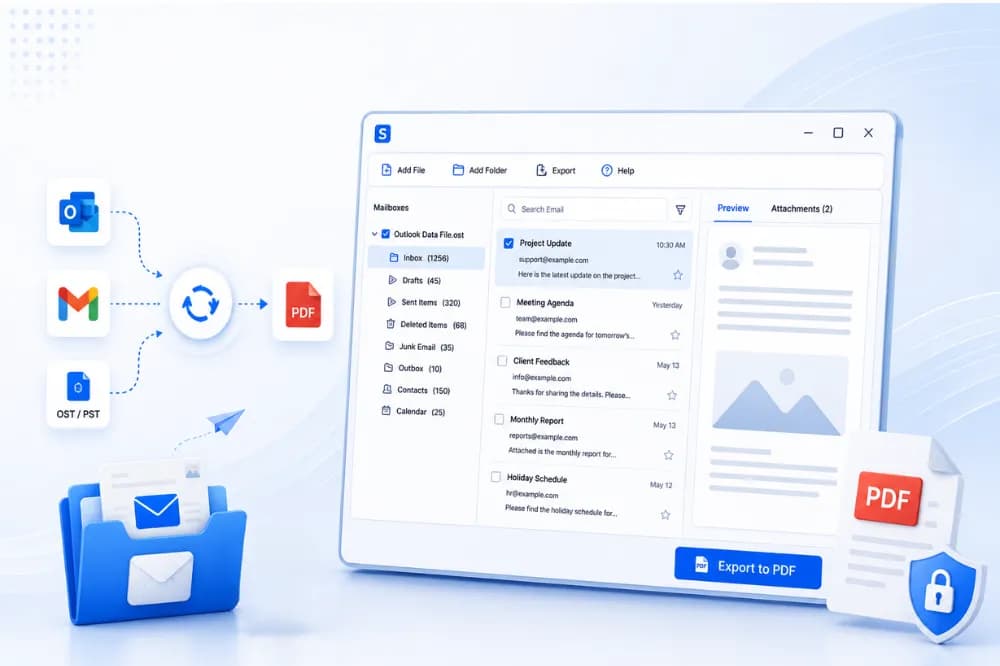
Convert Mail to PDF Quickly with Reliable Mail to PDF Converter.
Convert emails to PDF securely with Shefware Email to PDF Converter. Export EML, mail, and email data with attachments to PDF format quickly and easily.
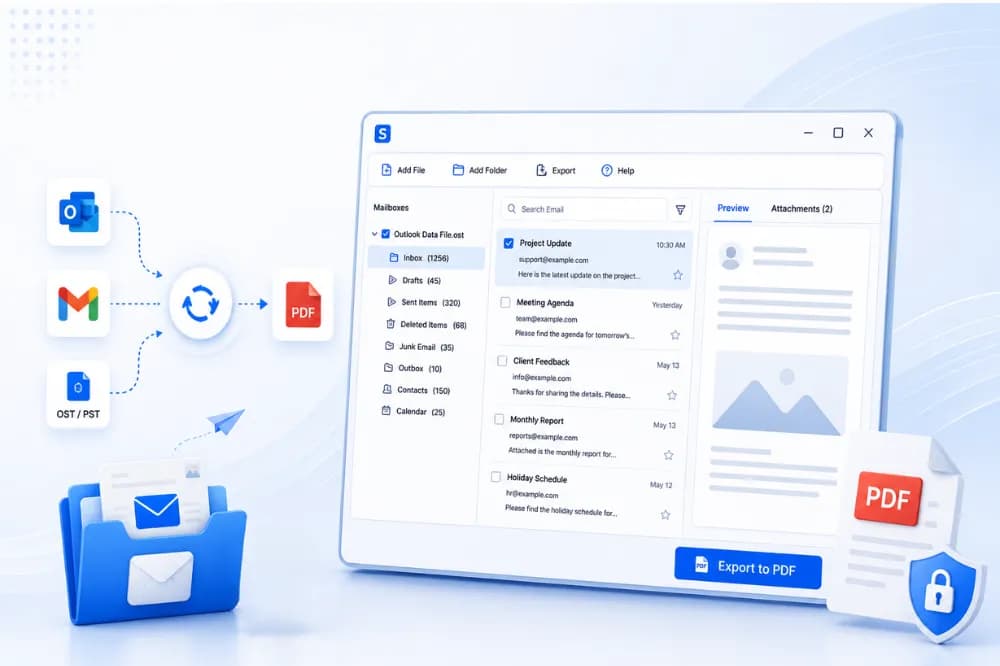
Shefware Email PDF Export Tool enables users to convert thousands of emails to PDF at once. Some of the other features include
Export thousands of emails to PDF format in bulk while maintaining the original email hierarchy.
Our tool converts and stores Gmail emails as PDFs. The emails converted into PDF can be saved on the local system.
Apart from PDF, the OST & PST emails can be converted into EML, MSG, HTML, TXT, MBOX, EMLX, DOCX, JSON
Our tool provides certain filters, such as Prune Deleted Items, Remove Empty Folders, and Strip Attachments, enabling users to export the emails in need.
We ensure our Email to PDF Converter is encrypted for secure email conversions. The emails are handled with advanced security standards, which ensure that the data is safe on the user’s system only.
Our tool preserves and maintains the original email components, such as fonts, images, hyperlinks, and attachments, including images, PDFs, signatures, etc., during the conversion.
Users can easily restrict the conversion of the deleted folders, which means that only the important emails relevant to the users are converted into PDF.
Experience a quick PDF conversion process while exporting large file sizes to PDF and get access to accurate data post conversion.
Follow these steps to convert emails to PDF quickly and securely
Go to any browser and search for Shefware Email to PDF Converter.
Download the application and install it in the system.
Click on the application and open the dashboard, and click on Open OST & PST file.
A small dialog box appears, browse the files and folders to be selected for the conversion process.
After browsing and selecting the files, a dashboard appears that consists of a folder list, a metadata report, an inbox, and a preview option.
Select any folder in the folder list, and a list of all the Mails included in the folder will appear.
The metadata report in the dashboard shows the total size, total folders, total items, and selected files.
The preview of the first file’s email and the attachment of the selected folder appear as the default unless other files are selected.
View the email and attachments of the files with details such as date, subject, from, and to.
We enable the users to download their attachment files before conversion.
Users can even save their attachment file locally in the system.
Use and apply the Filter & Export to select the desired file format for conversion.
We provide multiple file formats conversion apart from PDF, including EML, MSG, PST, HTML, TXT, MBOX, EMLX, PDF, DOCX, and JSON.
Select the destination folder where the converted files will be stored.
Select the Convert option, enabling the Outlook emails and attachments to convert into PDF.
A small dialog box shows the status of the conversion process, regardless of completion or failure.
Finally, after the completion, go to the location path as directed and verify if all the data, texts, and attachments have been converted.
Download Free Demo & Check System Requirements
Size: 121.31 MB
Version: 1.0.0.1
Hard Disk
500MB MB space required
RAM
Minimum 4 GB RAM
Processor
Intel® Core™ 2 Duo CPU E4600 @ 2.40GHz 2.39GHz or above
Operating System - Windows 11, 10, 8.1, 8, 7, Vista, XP, 2000, 98, NT and 95 and Windows Server 2022, 2019, 2016, 2012, 2008 R2, 2008, 2003 R2, 2003
Microsoft Outlook - 2021, 2019, 2016, 2013, 2010, 2007, 2003, 2000 (32-Bit & 64-Bit)
I have used Shefware Email to PDF Converter, and it has streamlined our organization’s email archiving process. It is a suitable tool for our company. Thank you, Shefware, for resolving our problems.
Accountant
Ans. Yes, our Shefware tool allows users to download and open attachments before it converts to PDF.
Ans. Yes, our Shefware Email to PDF Converter has multiple file formats such as EML, MSG, HTML, TXT, MBOX, EMLX, DOCX, and JSON, allowing users to convert to different file formats other than PDF.
Ans. Shefware has developed a safe and encrypted Email to PDF Converter, which safeguards user data by storing it locally on the user’s system.
Ans. Step 1: Open the dashboard and import the Outlook emails and attachments. Step 2: Preview the emails and attachments and choose the destination path Step 3: Select PDF as the export file format and verify the converted files in the destination path
Ans. The Shefware Email to PDF Converter tool is developed to quickly convert all emails into PDF with advanced and the latest technology. However, the conversion process depends on the file size of the Emails.
Ans. We enable the conversion of unlimited Emails into PDF. There is no maximum limit on email conversions into PDF.
Ans. Users can select the Shefware Email to PDF Converter tool to easily convert the emails into PDF format before switching email providers for a secure and accessible copy.
Ans. Shefware Email to PDF Converter tool stands out as the best email to PDF conversion 365 tool as it easily converts the emails into PDF format without any data loss.